
Read the doc - https://support.zoom.com/hc/en/article?id=zm_kb&sysparm_article=KB0063792
How to Add a Zoom Phone User and Assign a Phone Number
Part 1: Add a User in Zoom
-
Only Owners and Admins have permission to create or delete users in Zoom.
-
Sign in to zoom.com.
-
Navigate to User Management and click Add User from the left panel.
-
Complete the process to add the user to your Zoom account.
Note: Ensure that a Zoom Phone license is available and added to your account before proceeding.
Part 2: Get a New Zoom Phone Number and Assign It to a User
-
From the left-side panel, go to Admin and click Number Management.
-
Click Add Number and raise a ticket.
-
After raising the ticket, wait for up to 24 hours for the new phone number to appear in Number Management.
-
Once the phone number is available, go to Phone Number Management → Users.
-
Select the user and change the site to Noida.
-
Assign the appropriate package, Zoom Phone license, and phone number to the user.
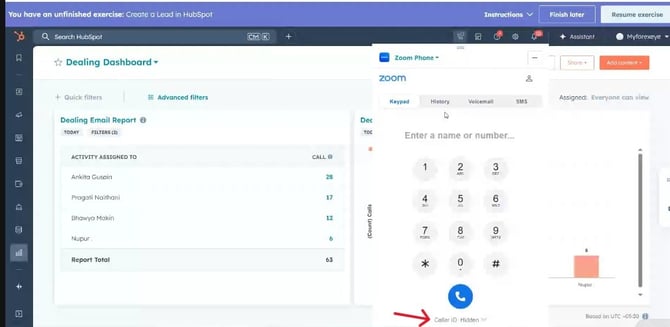
Caller ID Appears as Hidden When Calling Customers — How to Fix It in Zoom (HubSpot Integration)
-
From the left-hand menu, go to Phone.
-
Open the Profile tab and locate Outbound Caller ID.
-
Set Outbound Caller ID to Direct Number.